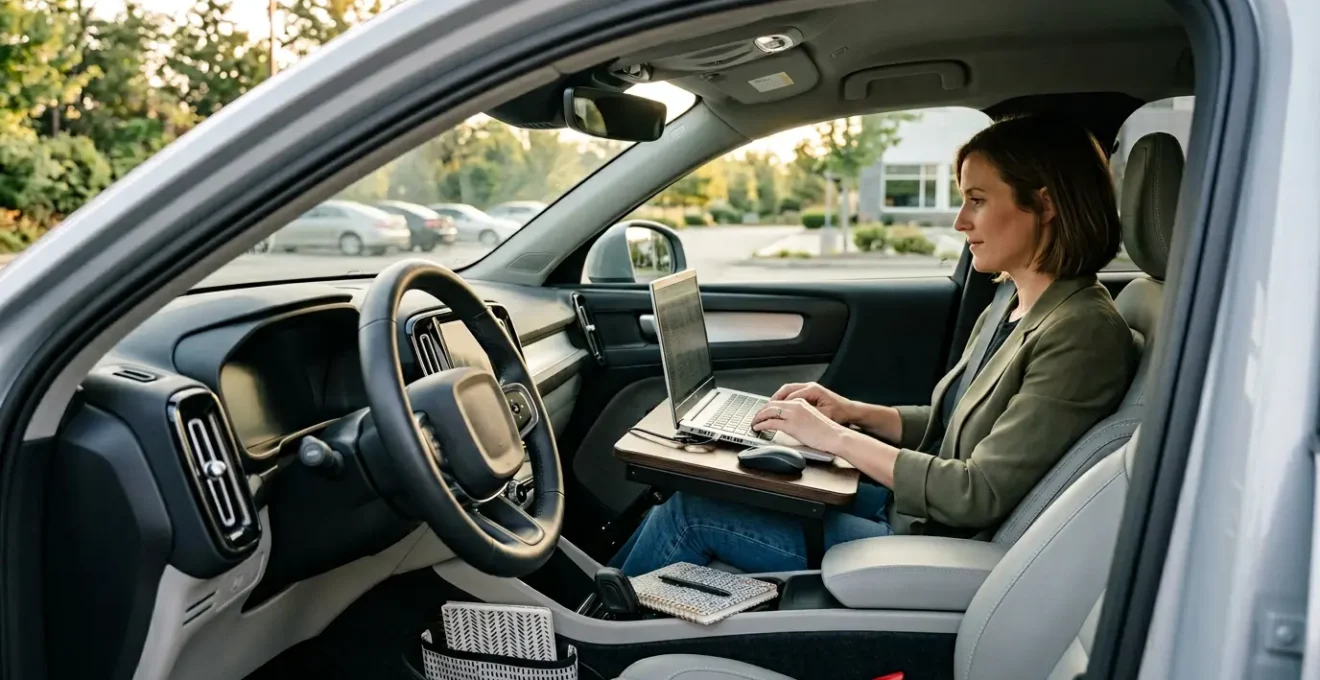
The key to monetizing your commute isn’t about ‘being busy’; it’s about building a robust mobile productivity infrastructure.
- Establishing reliable power and connectivity is the non-negotiable foundation for any serious work.
- Proactive security measures, like VPNs and privacy screens, are essential to protect client confidentiality on the go.
Recommendation: Systematically upgrade your vehicle with the right power, connectivity, and ergonomic tools to create a true ‘third workspace’ that generates revenue instead of costing you time.
For high-value professionals like lawyers and consultants, time is the most critical asset. A 90-minute commute isn’t just an inconvenience; it’s a significant loss of potential revenue. As one freelance writer noted about forgoing the drive home to work from her car, “If I went home to work, I’d waste roughly an hour commuting when I could be working kid-free. For me, that hour is essential.” This sentiment resonates deeply with anyone whose income is tied directly to billable hours. The standard advice—listening to podcasts or planning your day—scratches the surface but fails to address the core challenge: performing deep, focused, and billable work in a moving environment.
The common perception is that a car is a compromised workspace, fraught with distractions, poor connectivity, and physical discomfort. This leads many to resign themselves to low-value tasks during transit. However, this perspective overlooks a powerful opportunity. The challenge isn’t the location; it’s the lack of a proper system. The true key to unlocking this time is to stop thinking of your car as a temporary office and start treating it as a legitimate ‘third workspace,’ engineered for productivity.
This requires a systemic approach that moves beyond simple hacks. It involves establishing a dedicated productivity infrastructure—addressing the specific technological, ergonomic, and security hurdles that prevent a car from becoming a billable extension of your main office. By tackling these challenges head-on, you can transform what was once frustrating dead time into a consistent source of revenue and a competitive advantage.
This guide provides a blueprint for making that transformation. We will explore the practical solutions to the most common obstacles, from overcoming motion sickness during detailed tasks to securing your digital environment against prying eyes, enabling you to work effectively and bill confidently from anywhere the road takes you.
Summary: How to Turn a 90-Minute Commute Into Billable Work Time?
- Why Does Motion Sickness Strike When Working on Spreadsheets?
- How to Tether a 5G Connection Reliably on the M4 Motorway?
- Reading Lights vs Ambient Light: Which Is Better for Evening Work?
- The “Visual Hacking” Risk When Working in Traffic Jams
- Where to Place Your Coffee to Avoid Spills on Legal Documents?
- How to Position Your Laptop for a Zoom Call in the Back Seat?
- How to Verify if the Car’s Network Is Encrypted?
- How to Convert “Dead Time” in Traffic into Billable Hours?
Why Does Motion Sickness Strike When Working on Spreadsheets?
Motion sickness during in-car work stems from a sensory conflict between what your eyes see and what your inner ear feels. When you focus intensely on a static object like a laptop screen filled with a detailed spreadsheet, your eyes tell your brain you’re stationary. However, the vestibular system in your inner ear detects the subtle movements of the vehicle—acceleration, braking, and turns—sending contradictory signals. This neural confusion can trigger nausea, dizziness, and headaches, making focused work impossible.
This effect is amplified when performing tasks that require high visual concentration, such as reviewing complex legal documents or analyzing financial data in spreadsheets. The fine lines and small text force your eyes to remain fixed, heightening the sensory mismatch. The brain struggles to reconcile the visual stillness with the physical motion, leading to a state of physiological distress.
To mitigate this, you must reduce the sensory gap. First, increase font sizes on your documents and spreadsheets to allow your eyes to relax. Second, take frequent “micro-breaks” every 10-15 minutes to look out the side window at the passing scenery. This helps your brain re-synchronize the visual input with the sensation of movement. Finally, consider shifting certain tasks to an audio format. Dictating notes, listening to case briefs, or taking calls can be highly productive alternatives when visual focus proves too challenging. If you are a passenger, sitting in the front seat where you have a clear view of the road ahead can also significantly reduce symptoms.
How to Tether a 5G Connection Reliably on the M4 Motorway?
For a professional billing by the hour, an unstable internet connection is a critical failure point. Relying on a smartphone hotspot is often a recipe for dropped video calls and interrupted file transfers, especially when traveling through areas with fluctuating signal strength like the M4 corridor. The solution is to build a dedicated productivity infrastructure starting with a high-performance mobile hotspot. This device is purpose-built to pull in the strongest possible cellular signal and convert it into a stable Wi-Fi network for your devices.
A dedicated hotspot offers superior antenna performance compared to a smartphone and often supports more advanced network technologies. This ensures a more resilient connection, which is the bedrock of any effective mobile office. To power these devices without draining your car battery or creating a mess of wires, a professional-grade power solution is necessary.
Case Study: The Dedicated Mobile Hotspot
For consistent 5G and LTE connectivity, a device like the Netgear Nighthawk M5 mobile hotspot (MR5200) proves highly effective. With a robust 5,040-milliamp hour battery and dual-band Wi-Fi, it provides a reliable network for multiple devices. Its compact size (4.1 x 4.1 x 0.9 inches) allows it to be kept permanently in the car’s center console, staying continuously charged via a cigarette lighter outlet for always-on connectivity the moment you start the car.
To ensure your hotspot, laptop, and other peripherals remain powered throughout a full workday, a portable power station or a high-wattage inverter is a wise investment. These tools provide clean, stable AC power, turning your vehicle’s DC output into a usable source for any standard electronic device. This table compares some of the leading options for establishing a reliable power supply for your mobile office.
| Power Solution | Output | Best For | Key Features |
|---|---|---|---|
| Anker 521 Portable Power Station | 200W AC outlets, 60W USB-C | Full day work without running car | 256 watt-hour battery, built-in light, battery display |
| Tripp Lite PV200CUSB PowerVerter | 200W AC, USB-A ports | Laptop charging while driving | Fits in cupholder, powered by DC outlet |
| Tripp Lite PV375 PowerVerter | 375W AC | Heavy equipment needs | Higher wattage for multiple devices |
Reading Lights vs Ambient Light: Which Is Better for Evening Work?
The optimal lighting for evening work in a car is not one or the other, but a strategic combination of both. Working solely with a bright laptop screen in a dark cabin creates high contrast, which forces your pupils to constantly adjust and leads to significant eye strain, fatigue, and headaches. This directly undermines productivity and can contribute to long-term burnout. Conversely, relying only on the car’s dim, diffuse dome light (ambient light) often fails to provide enough focused illumination for reading documents or typing accurately.
The most effective setup involves creating a layered lighting environment. Start with a low level of general ambient light to reduce the harsh contrast between your screen and the dark surroundings. This can be the vehicle’s existing interior light set to its lowest dimmable setting. Then, add a focused task light directed specifically at your work area—your keyboard and any physical documents.
A flexible, clip-on LED lamp with adjustable brightness and color temperature is an ideal tool for this. It can be powered via USB from your laptop or a portable power pack. Position it to illuminate your workspace without creating glare on your laptop screen. This layered approach provides enough light to work comfortably while minimizing the eye strain associated with high-contrast environments. Proper lighting is a cornerstone of ergonomic stability, ensuring you can sustain focus for longer, billable periods without physical discomfort.
The “Visual Hacking” Risk When Working in Traffic Jams
When you’re focused on a confidential client document in a traffic jam, your vehicle’s windows can effectively become a display screen for anyone in an adjacent car, on a bus, or even a pedestrian. This risk, known as visual hacking or “shoulder surfing,” is a significant threat to client confidentiality. For lawyers and consultants handling sensitive information—contracts, financial statements, or case strategies—a single glance from an unauthorized individual can constitute a serious data breach, with potentially severe professional and legal consequences.
The assumption that no one is paying attention is a dangerous one. In slow-moving or stopped traffic, idle passengers have ample opportunity to view your screen. This risk is not hypothetical; it is an active security vulnerability in any public or semi-public workspace, including your car. Mitigating this threat is a non-negotiable aspect of professional mobile work.
The single most effective countermeasure is a privacy screen filter for your laptop. These filters use micro-louvre technology to narrow the viewing angle of your screen, so that only the person directly in front of it can see the content. To anyone viewing from the side, the screen appears dark or distorted. This simple tool effectively creates a digital shield, making it nearly impossible for a casual observer to read your work. It’s a small investment that provides an essential layer of security, ensuring your mobile office is a private and confidential workspace. Always remember, the foundational rule is to only perform work when safely parked, never while driving.
Where to Place Your Coffee to Avoid Spills on Legal Documents?
In the confined space of a car, a spilled coffee can be catastrophic, instantly ruining important legal documents, short-circuiting a laptop, and derailing a productive work session. The key to preventing this is strategic organization based on creating distinct “wet” and “dry” zones within your passenger seat workspace. Your valuable electronics and paper documents must reside exclusively in the dry zone, while beverages are relegated to a secure wet zone.
Most built-in center console cupholders are too close to the primary work area, making them a high-risk location. A much safer choice is a door-mounted cupholder or a secondary cupholder located away from the passenger seat. This physical separation is your first line of defense. Furthermore, always use a high-quality travel mug with a secure, leak-proof lid. Avoid open-top cups or flimsy disposable lids at all costs.
To establish these zones effectively, a structured organizational system is essential. The following best practices provide a framework for maintaining a clean, safe, and efficient mobile office:
- Work While Parked: Never attempt to manage documents, type, or handle beverages while the vehicle is in motion. Always pull over to a safe, designated spot.
- Use a Car Office Organizer: A dedicated organizer for your passenger seat, like the High Road Car Organizer, creates compartments to keep files, pens, and essentials secure and within reach but separate from your immediate work surface.
- Hands-Free Communication: Use Bluetooth headsets and voice commands for all calls to keep your hands free and your focus on safety and organization.
- Schedule Weekly Cleanings: A clutter-free environment is a safe environment. Regularly remove trash and re-organize your setup to prevent hazards from accumulating.
- Invest in Ergonomics: An ergonomic seat cushion not only provides comfort but also helps you maintain a stable posture, reducing the likelihood of accidental bumps and spills.
How to Position Your Laptop for a Zoom Call in the Back Seat?
Taking a video call from your car has become increasingly common, with some studies showing an 87% increase in remote work since pre-pandemic times. However, a poorly executed call can project an image of unprofessionalism. The key to a successful backseat Zoom call is controlling three factors: camera angle, lighting, and background. Merely balancing a laptop on your lap is not a viable option; it results in an unflattering, low-angle view and an unstable picture.
The gold standard is to use a stable, elevated surface. A passenger seat car desk, such as the AutoExec AUE10000 Reach Desk, can be swiveled to the back seat to create a proper workstation. If a full desk isn’t feasible, a smaller laptop tray that straps to the back of the front seat can also work. The goal is to position the laptop’s camera at or slightly above your eye level. This creates a natural, professional, and engaging angle, identical to one you would have in a traditional office.
Lighting is the next critical element. Avoid sitting with a bright window directly behind you, as this will turn you into a silhouette. Instead, face a window to get soft, natural front lighting. If it’s dark outside, use a portable, clip-on LED ring light mounted to your laptop to illuminate your face evenly. Finally, be mindful of your background. Ensure the visible area is clean and free of clutter. Some modern cars have privacy screens for rear windows, which can create a neutral backdrop. If not, a simple, dark-colored blanket draped over the far-side window can eliminate distracting backgrounds and enhance your professional appearance.
Key Takeaways
- Productivity infrastructure is key: Reliable power and a dedicated 5G hotspot are the non-negotiable foundation for serious mobile work.
- Security is paramount: Use VPNs and physical privacy screens to uphold client confidentiality and protect sensitive data at all times.
- Ergonomics drive billable throughput: A stable desk, proper lighting, and an organized workspace prevent fatigue and enable sustained deep work.
How to Verify if the Car’s Network Is Encrypted?
When you’re handling sensitive client information, the security of your Wi-Fi network is as important as the lock on your office door. Using an unencrypted or poorly secured network is the digital equivalent of discussing a confidential case in a crowded cafe. Therefore, the digital fortification of your mobile workspace is a top priority. This begins with verifying and enforcing strong encryption on your mobile hotspot.
All modern, reputable mobile hotspots should use, at a minimum, WPA2 (Wi-Fi Protected Access 2) encryption. The current gold standard is WPA3. You can verify this by connecting a device (like your laptop or smartphone) to the hotspot’s Wi-Fi network, going into the network settings for that connection, and viewing its properties. The security type will be explicitly listed as “WPA2-Personal” or “WPA3-Personal.” If it shows “WEP” or “Open,” the network is insecure and should never be used for professional work.
However, even a WPA2/WPA3 encrypted hotspot is not enough to guarantee client confidentiality. This encryption only protects the connection between your device and the hotspot. It does not encrypt the data as it travels from the hotspot, over the cellular network, and across the public internet. For this reason, using a Virtual Private Network (VPN) is absolutely non-negotiable for any lawyer or consultant working remotely. A VPN creates a secure, encrypted tunnel for all your internet traffic, making it unreadable to anyone who might intercept it. It is the definitive layer of security that ensures your mobile work meets the highest standards of professional and ethical conduct. Failing to secure your connection can lead to data breaches, which in turn can lead to lost client trust and, as some legal tech analyses suggest, more than 10% of billable hours can be lost from the fallout of such disruptions.
How to Convert “Dead Time” in Traffic into Billable Hours?
Transforming your commute from a time-sink into a revenue-generating activity requires a mental shift and a systematic framework. It’s about moving from passive consumption (like listening to podcasts) to active, billable production. As the team at CosmoLex, a legal productivity software company, notes, “The phrase ‘work smarter, not harder’ is one every lawyer should keep in mind when thinking about how to fit more billable hours into their day.” This means having your tools ready, your space organized, and your mindset aligned for focused work the moment you are safely parked.
The phrase ‘work smarter, not harder’ is one every lawyer should keep in mind when thinking about how to fit more billable hours into their day. Being diligent in your work can’t be replaced, but there are ways to get the most out of the hours you put in.
– CosmoLex Team, CosmoLex Blog on Legal Productivity
The foundation of this transformation is meticulous time tracking and detailed note-entry. Every 15-minute block spent reviewing a document or dictating a memo is billable time that is often lost if not captured immediately. In fact, one study into billing realization shows that entering a note of only 140 characters can increase rates by 4.65%, proving that detailed, contemporaneous time entry has a direct impact on your bottom line. Use a mobile-friendly time tracking app to log your work as it happens, not hours later.
To maximize this time, a structured approach is essential. Time blocking is a powerful strategy that allows you to allocate specific periods to high-value tasks. By planning your mobile work sessions in advance, you can hit the ground running with a clear objective, whether it’s drafting a contract clause, reviewing discovery, or preparing for a client call.
Action Plan: Implementing Time Blocking for Mobile Work
- Categorize Tasks: Before your week begins, classify all potential tasks into ‘Revenue Generating’ (client work), ‘Administrative’ (emails, scheduling), and ‘Personal’.
- Color-Code Your Calendar: Assign a color to each category for a clear visual overview of your week.
- Schedule High-Value Work First: Block out 1-2 hour chunks for revenue-generating tasks during your commute or between meetings. Treat these blocks as unbreakable appointments.
- Use Low-Energy Time Wisely: Reserve shorter, 15-30 minute gaps for administrative tasks like clearing your inbox or returning non-urgent calls.
- Maintain a Weekly Framework: Create a template for your ideal week, including planned mobile work sessions, and stick to it as closely as possible to build a productive rhythm.
By implementing a robust productivity infrastructure, enforcing strict security protocols, and adopting a disciplined time-blocking framework, you can systematically convert your commute into a significant and consistent source of billable hours.
Frequently Asked Questions on How to Turn a 90-Minute Commute Into Billable Work Time?
Is it safe to work from my car?
Yes, as long as your car is safely parked and off. Never attempt to work or use electronics while driving.
How can I get reliable internet in a car office setup?
A mobile hotspot device with a solid data plan is your best bet. Some people also use their phone’s hotspot feature, but a dedicated device often gives better coverage. If you’re frequently in remote areas, consider a signal booster to improve reception.
Can I really work productively from a car or truck?
Absolutely. With the right setup, a bit of structure, and a clean, quiet environment, you can stay just as focused as you would in a traditional office. The key is having your tools ready, your space organized, and your mindset aligned with remote work flexibility.